

Your Planera schedule, live in Autodesk Forma Build
RFIs, submittals and documents live in Autodesk. The schedule lives in Planera. Sync it straight into the Forma Build Schedule tool, with no downloads and no manual uploads.
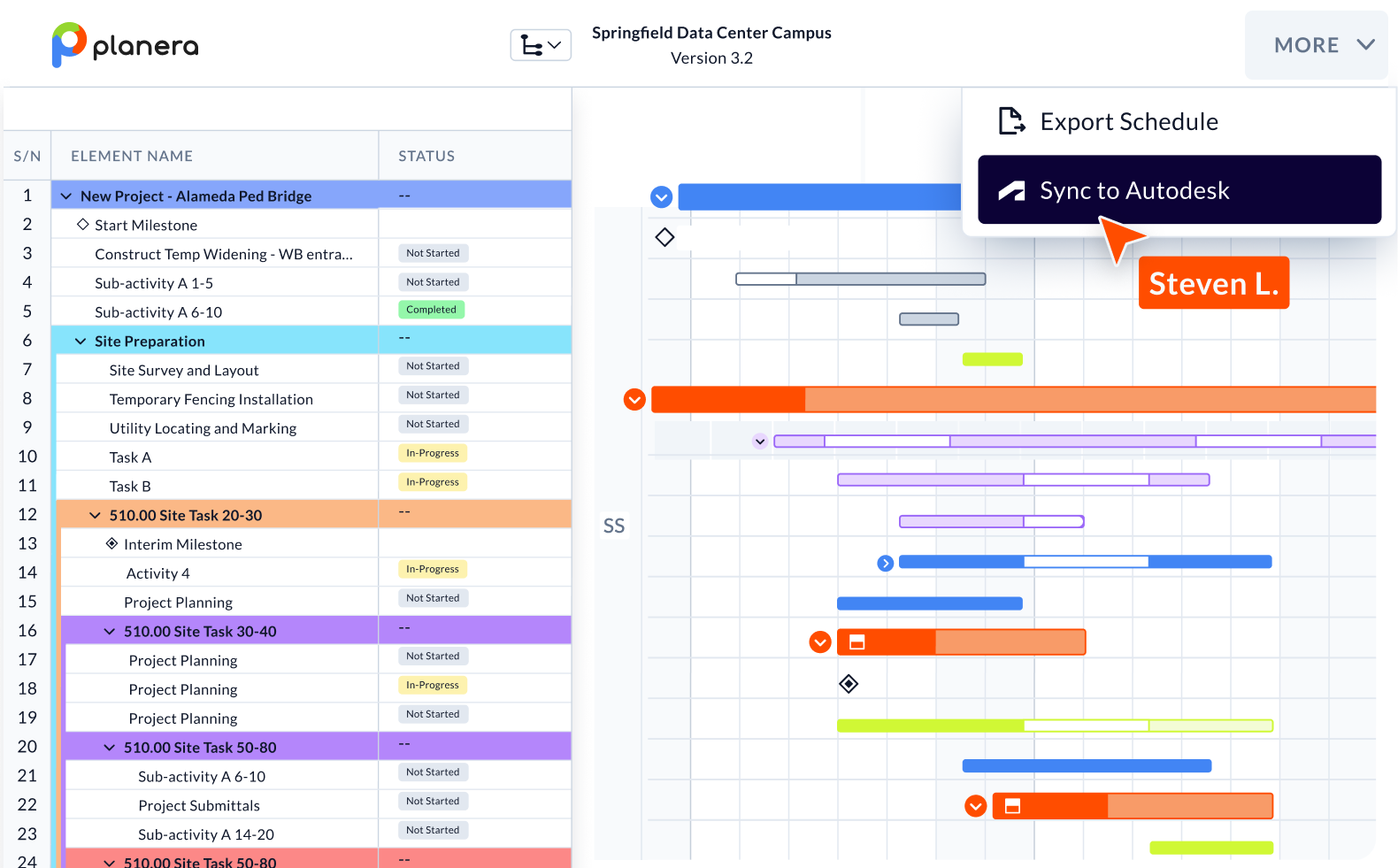
Sync with Autodesk

Sync from inside the schedule
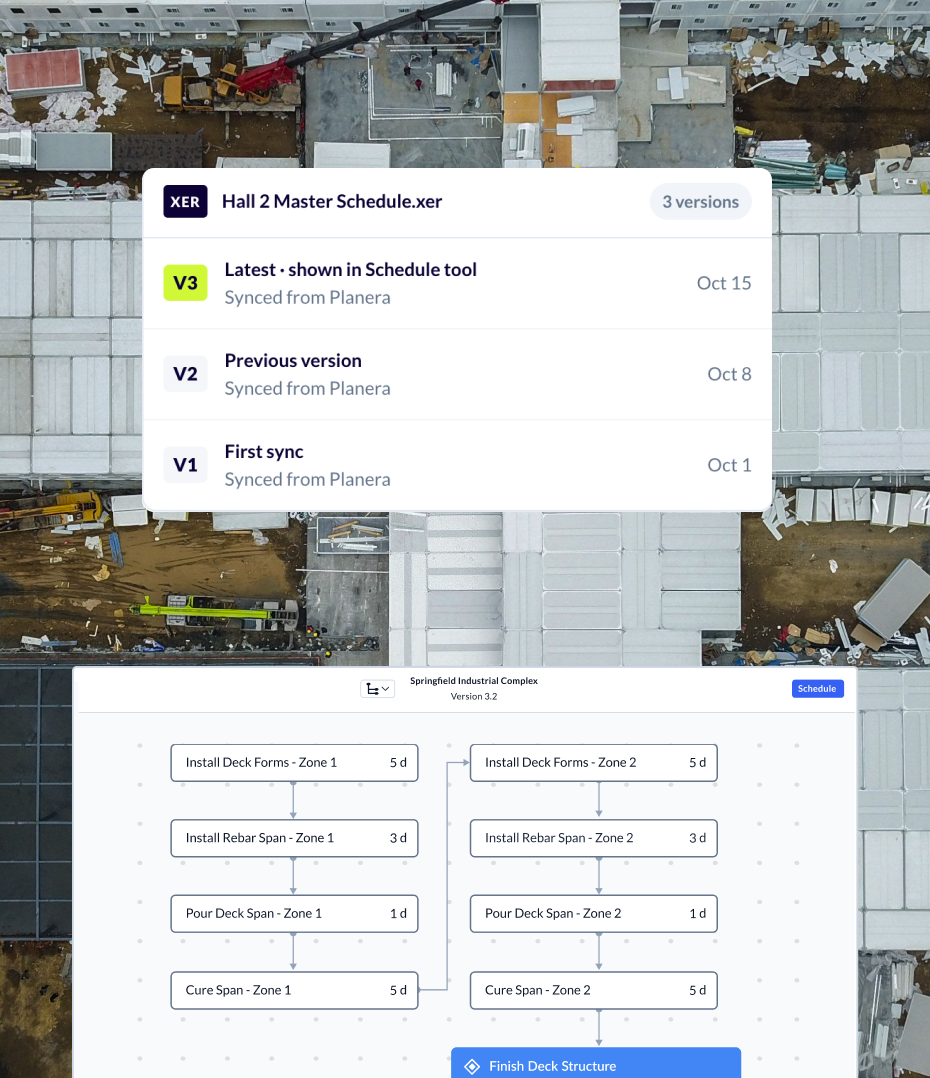
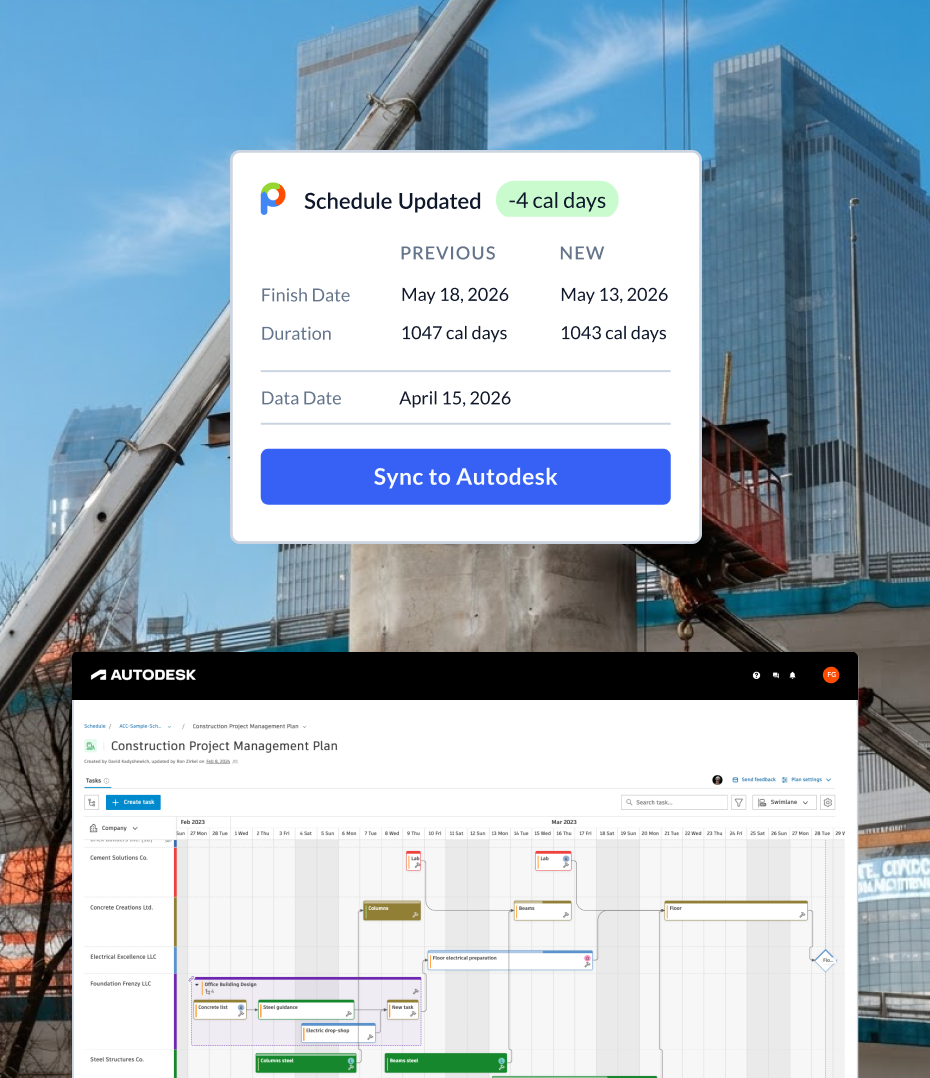
Schedule in Planera, run the project in Autodesk
Getting a schedule into Autodesk used to mean exporting a file, downloading it and uploading it to the Schedule tool. That round trip is easy to skip, so the schedule in Autodesk drifts from the real plan.
Now the scheduler runs the schedule in Planera and syncs. Planera sends it as a P6 XER file, the format the Forma Build Schedule tool reads, and the rest of the team sees the current plan in the tool where they track RFIs and submittals.
Set up once, sync anytime
An Autodesk hub admin adds Planera as a custom integration. This is a one-time step for the whole account.

Each user connects their Autodesk account in Planera. It takes about 10 seconds.
Create a schedule once in Build > Schedule. That sets up the folder Planera syncs to.
