


Plan in Planera. Publish to Procore.
Build the CPM schedule where the logic lives, then push it into Procore so the project team works from the current plan, not last month's upload.
Request a demo

Available in the Procore App Marketplace →
WHAT GOES INTO PROCORE
The whole schedule, not just the bars

Logic stays intact
WBS, activities, durations, relationships and the critical path all go across.

Progress and baselines
Percent complete, actual dates, and baseline start and finish dates.

Resources map over
Labor and equipment land in Procore Resources.

Pick your Procore tool
Publish to Procore Scheduling as a read-only import your team can build from.
THE WORKFLOW
One schedule, published where the project runs
Most GCs schedule in one tool and run the project in another. Someone exports a file and uploads it to Procore, and the schedule there is only as current as the last person who remembered.
In Planera, publishing is a menu action inside the schedule. Your team can also open Planera inside Procore with single sign-on, so PMs and supers reach the live schedule without leaving the tool they already use.
In Planera, publishing is a menu action inside the schedule. Your team can also open Planera inside Procore with single sign-on, so PMs and supers reach the live schedule without leaving the tool they already use.
IN PROCORE AI
Find the RFIs that threaten the schedule
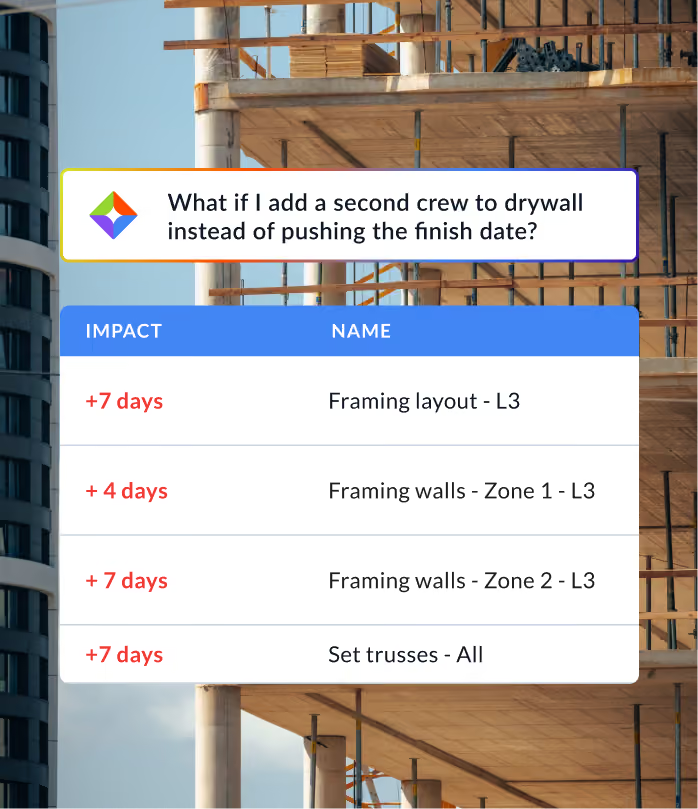
The RFI-to-Schedule Risk Scanner runs inside Procore AI. It reads the open RFIs in your Procore project, matches each one to the Planera activities it may affect, and explains why. Ask it to, and it adds a link to each RFI in the matched activity's notes.
It never changes dates, durations or logic. The scheduler still decides what moves.
It never changes dates, durations or logic. The scheduler still decides what moves.
THE SETUP
Live in three steps
1
Install Planera from the Procore App Marketplace.

2
Give the Planera app access to your Procore projects.
3
Open a schedule in Planera and publish it to Procore from the More menu.
See it with your own Procore project
Comparing Planera to Procore's built-in scheduling? See Planera vs. Procore Schedule →