



Most scheduling decisions depend on context that sits one step away from the task in front of you: the float in the master schedule, whether a predecessor has finished, how many labor hours are left, what changed on a version months ago. This release brings that context to where you're already working. Here's a closer look.
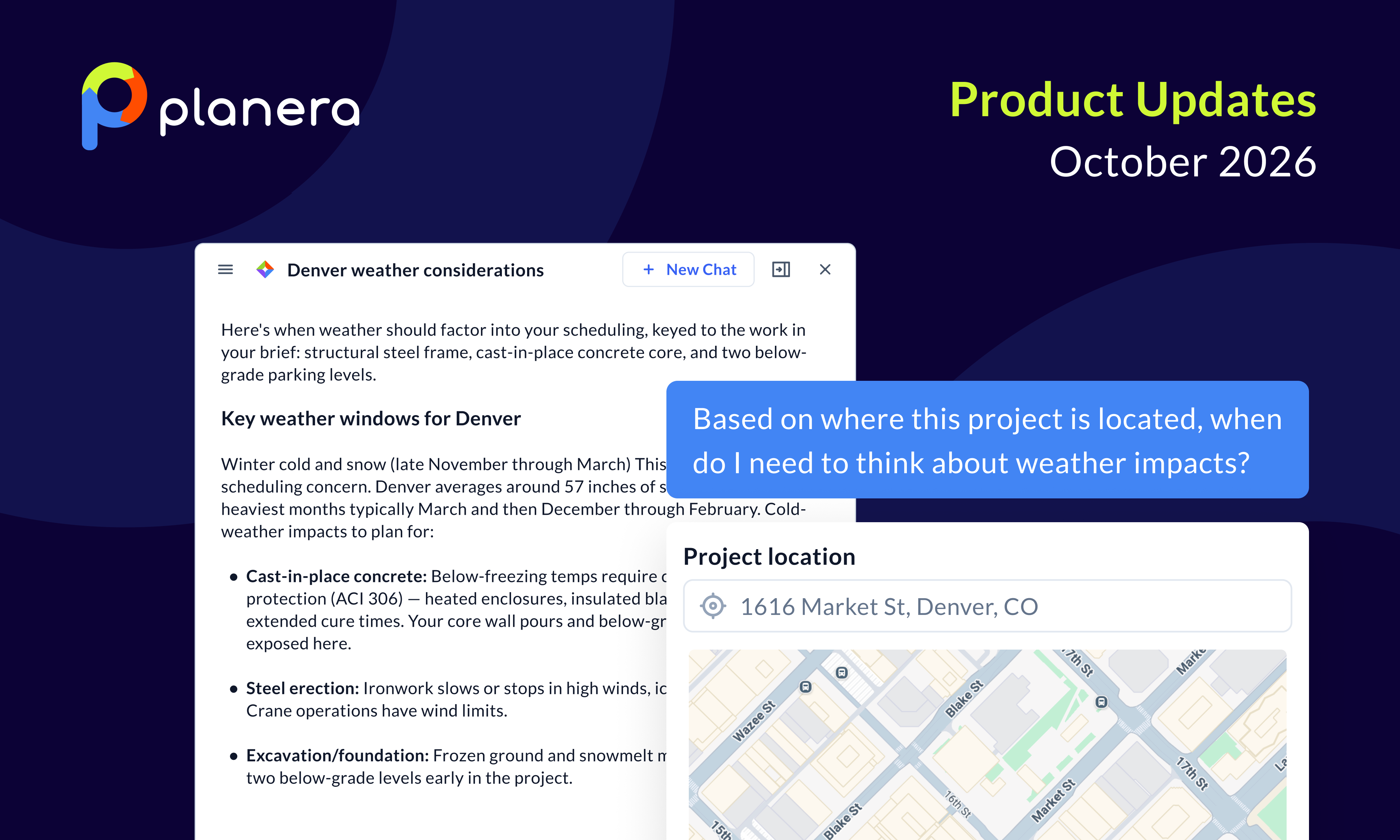
Manny now answers with your project's location and constraints in mind
A useful answer about weather risk or sequencing depends on where the job is and what constraints you're working under. The Project Details tab in Project Settings now has three new fields for exactly that: location, project description, and other schedule requirements. Whatever you enter is available to Manny in every chat anyone on your team has in that project, so asking when you need to think about weather impact gets an answer based on the project's actual location, and Manny draws on the description and requirements you've added the same way. Watch how it works.
Give Manny the full screen when you need room to compare
Some of the most useful things to ask Manny come back as tables, like the next 10 activities on the critical path along with their metadata. Manny now has a full screen mode alongside the floating and docked views, which gives a table like that enough room to fit in view at once. It's most helpful when you're comparing activities, durations, or changes across versions. See it in action.
Review logic with dates and status in view
When you're checking sequencing or running a progress update, knowing a predecessor exists is only half the answer; you also need to know when it starts and whether it's done. The Relationships panel now shows start and finish dates for every predecessor and successor, with status icons on the dates, alongside the driving, free float, total float, and relationship type details it already carried. The panel can be moved and resized, and it stays open next to the Progress Update panel, following along as you click from one activity to the next on the canvas. Watch how it works.
Connect to the right activity with full names and dates in view
Tying logic into a large schedule means picking the right predecessor or successor out of a long list, and the name alone doesn't always settle it. Connect to Existing now widens to show every activity name in full, whether your WBS is one level deep or ten, and lists start and finish dates sorted by start date, with status icons and tooltips that make clear when a date is an actual. You can set the relationship type for each activity as you connect, finish-to-start on one and start-to-start on another, and the interaction works the same from the Relationships panel, the Canvas, and Inspect Path. Watch how it works.
See master schedule float and committed dates inside your field schedule
Checking a field schedule against the contractually agreed values in the master schedule has meant flipping back and forth between the two. Field schedule activities now show the master schedule's total float, switchable to free float, and tooltips show the start and finish committed in the master schedule along with any variance reason codes. Every time you create a new version of the field schedule, those values refresh, so the field schedule keeps pace with the master and the two don't drift apart. Watch how it works.
See a version's full change history, however old it is
On a version that's been active for most of a project, the change you're trying to trace may have happened well before last quarter. The project changelog time frame filter now includes an All option, which shows every change made over the life of a version rather than just the last 90 days. On long-running projects, that means the full record is always one filter away. See it in action.
Track labor and equipment hours right in the table and Gantt
Understanding what a project still needs comes down to how much of each resource has been used and how much remains. The table and Gantt now offer actual, remaining, and total hours for both labor and equipment, all available from the Resources section when you add fields. Watch how it works.
Find the action you need faster in the More menu
The More menu holds a lot of actions, and the one you want should be quick to spot. In the Canvas, Table, and Gantt, the menu is now wider and reorganized into groups of related actions, which makes it easier to read and scan. See it in action.

You deserve better scheduling software.
Drive revenue, reduce costs, and manage scheduling with Planera.
Request a Demo