


Product Highlight: A dedicated place for structural WBS work
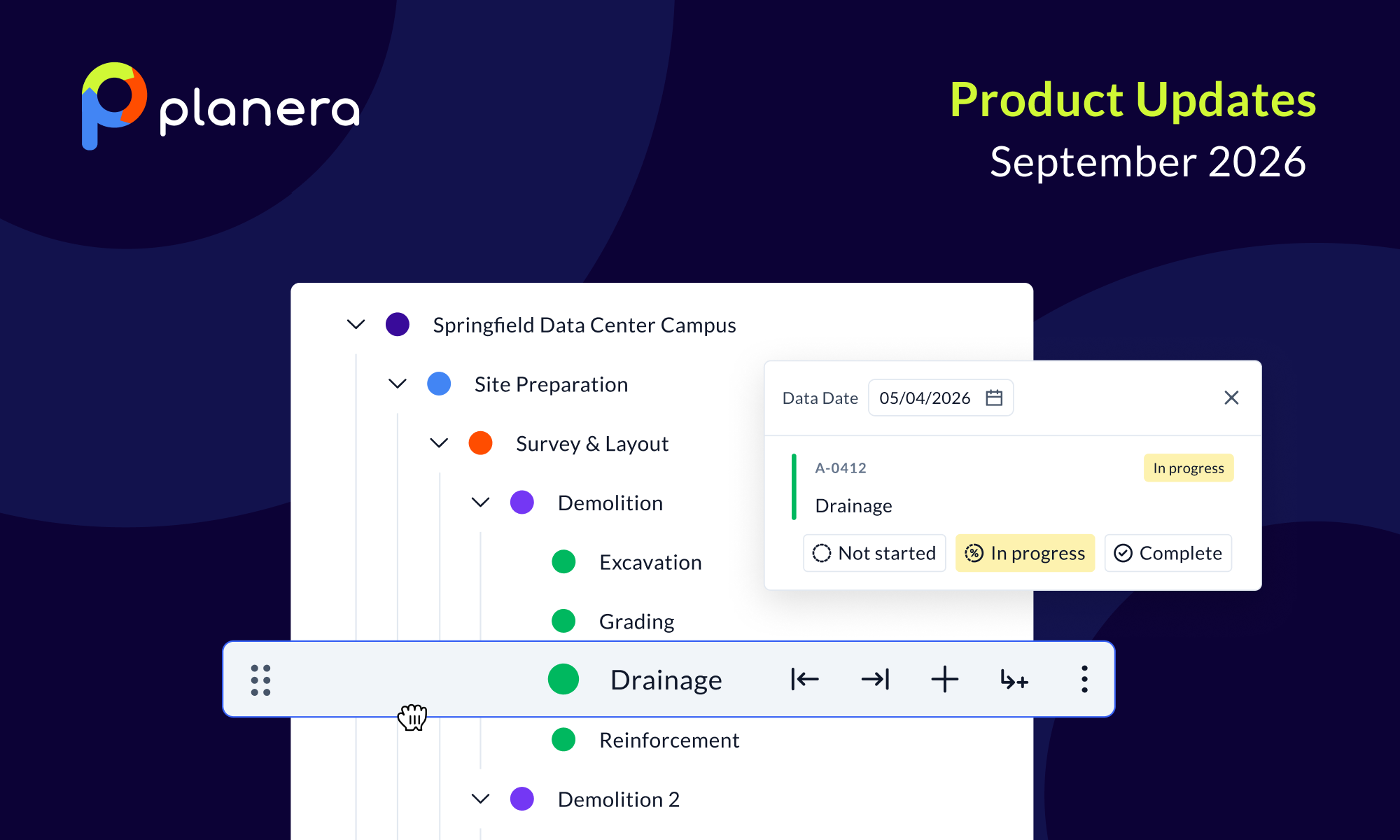
A lot of scheduling work isn't clicking through one activity at a time, it's structural: standing up a WBS, reshaping it as scope changes, or walking a job site to update progress area by area. That kind of work now has its own dedicated views.
- Update progress one WBS group at a time. The progress panel now includes a tree view alongside the list view, grouping activities under their parent WBS. Finish everything in one area, site prep, for example, before moving to the next, with the surrounding context in front of you. Learn more here: https://www.loom.com/share/24fe698c164b44dbb35a1a613be6969f
- Build and reshape your WBS in a dedicated editing view. Add, reorder, indent, and outdent WBS groups from the canvas, table, or Gantt, with live visibility into who else is working on the structure, built for the moments you're moving a lot of groups in one sitting. Learn more here: https://www.loom.com/share/0618a14eb7dd477392ced80134f812eb
Keep Manny docked instead of floating
Manny's panel can now dock to the side of the screen, in the canvas, table, or Gantt, rather than floating over whatever you're working on. Drag it out to take up half the screen, or back down, and it stays clear of the controls you're using. Views that don't support docking yet, like the watch list, will still pop it back into a modal, but it remembers your preference and returns to docked once you're back in a supported view.
Learn more here: https://www.loom.com/share/64208780ea4b45178296a8aa6fd314a7
Send your schedule straight to Autodesk Forma Build
If RFIs, submittals, and project documents live in Autodesk while the schedule lives in Planera, you can now upload XER and XML files directly into the Forma Build Schedule tool, so everyone's working off the same schedule, in the tools they already use.
Learn more here: https://www.loom.com/share/527bf2498dae42a6abbc6a3df0723567
See start and finish dates right on the Gantt bars
Gantt display options now include a toggle that puts start and finish dates next to the bars themselves, so the date range for each element is where you're already looking. It's a per-user setting, on or off in one click, and it follows you across projects.
Learn more here: https://www.loom.com/share/1117687e3e464534a84e944fe2ea8988
Read full predecessor and successor logic without leaving the column
Predecessor ID and successor ID columns (now generally available) show each ID and its relationship type (finish to start, start to start with lag, etc.) directly in the table and the Gantt. For activities carrying more logic than fits the column, switch it from clip to wrap to see all of it at once.
Learn more here: https://www.loom.com/share/56f3c3cf442149399ca37f0eebfd3775
Define activity IDs during Excel paste
Pasting activities from a spreadsheet is one of the fastest ways into Planera, and IDs often carry more meaning than the activity name. Excel paste now accepts an ID column, Planera flags any conflicts (a reserved prefix, for example) and lets you auto-assign or set your own before the paste lands.
Learn more here: https://www.loom.com/share/07e3088d8c114cadb4344b89cbf4ec83
Roll up resources by early start, late start, or the midpoint
Resource planning reports at the org level now include a Start Type column, so you can view demand by early, mid, or late start, see the graph and table update instantly, or apply one start type across every project in the report. (Mid and late values calculate after the schedule runs, run the schedule first if those numbers come up empty.)
Learn more here: https://www.loom.com/share/d178da805b8d406b943f2dc545e4f1f9
You deserve better scheduling software.
Drive revenue, reduce costs, and manage scheduling with Planera.
Request a Demo