


Faster and more intuitive progress updates
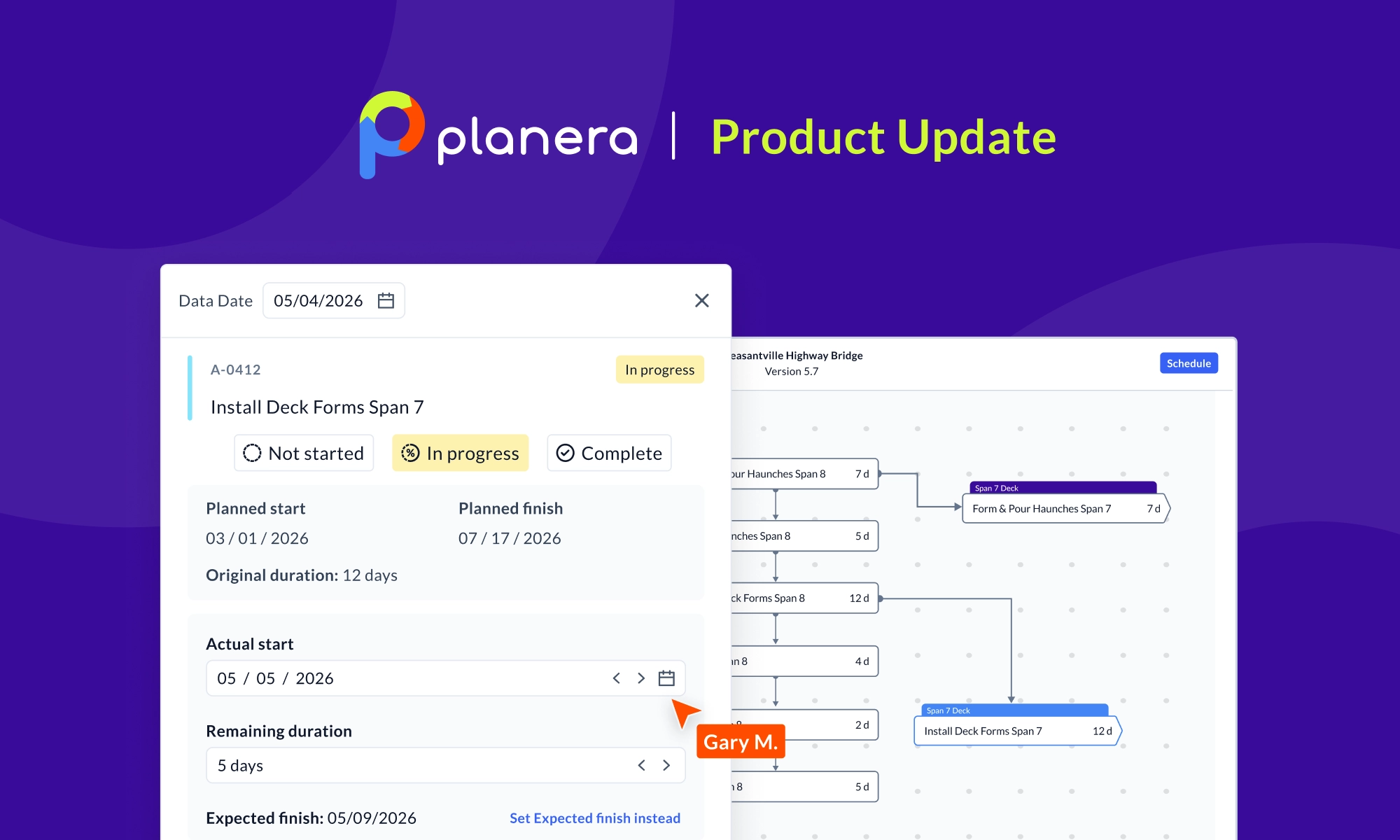
Statusing a schedule is one of the most important flows in Planera. The redesigned progress update side panel queues up every activity that needs an update based on your data date and puts all the inputs in one place: status, actual start, remaining duration (or expected finish, if that's how you work), variance reasons, and notes. Confirm an update and the activity clears from your list, so you can work straight down to inbox zero, entirely from the keyboard if you prefer.
Deeper insights into the impact of progress updates with Manny
You work through your progress-update list, resolve the last activity, and the real question starts: what did all of that do to the schedule? Now, when the progress-update list is clear, Planera offers to run insights with Manny: check off the preset analyses you want, a milestone analysis, a compression summary, a changes report, a blockers review, and each opens in its own chat thread with the prompt and Manny's response together. On a project you update weekly, that turns "what moved?" into something you actually do every time.
Variance comparison against any version
The version you need to compare against isn't always the baseline or the previous update; sometimes it's a resequenced plan from three versions back. Variance columns now work against any version in your project: open the variance columns, click Change, choose the version, and pull in start, finish, and float variances against it, with up to two alternative versions at once.
Add site photos, markups, and screenshots in your notes
When you encounter an issue during construction, a photo captures the situation better than any written description. You can now embed images directly in activity notes: insert from the note, drag and drop, or copy and paste, and the visual context lives right alongside the written record on the activity.
More powerful multi-project resource planning
Whether crews can move between jobs or must stay dedicated to one changes the answer to "how many people do I need?" The resource planning dashboard now lets you view labor and equipment as shared, the maximum in use at any one time across projects, or dedicated, the total needed over the period, with per-project maximums and cumulative sums in the table below. One view answers both peak demand and total need for any set of projects.
Repair logic while inspecting path for higher quality schedules
Inspect path is where you trace what's driving a milestone, and it's often where you find the tie that's missing. Now you can fix it without leaving: right-click any activity in the path, add a predecessor or successor, pick the activity by name or ID, set the relationship type and lag, and the change flows back to the table and Gantt.
Your organization's best prompts, on every project
When several teams across your organization leverage Manny, the payoff depends on all of them asking the same well-built questions, and that is hard to standardize from one project and one team to the next. Org admins now get an editable Prompt Library: in the new Manny section on the Home screen. From here you create and edit the organization-wide prompts that appear on every project, each with a name, a one-line description, and a category you define. From any project, your team opens Manny, browses the library, runs a prompt, and pins the ones they use most to the top, alongside a personal selection of their own.
You deserve better scheduling software.
Drive revenue, reduce costs, and manage scheduling with Planera.
Request a Demo